

We’re back with the final edition of the How to Vibe (Claude) Code series. For those of you new here, I recommend checking out Part I and Part II for how to get started with Claude Code, as well as tips and tricks to get you off the ground. Time to dive in.
Models
If you’re using the Claude desktop app, you’ll see the active model in the bottom right of the prompt bar (just look for the Claude logo). Words like Haiku, Sonnet, and Opus are branded names representing different large language models (LLMs) offered by Anthropic. You can click on the model’s name to open the menu of options within the desktop app or web browser. If you’re in the terminal, type “/model” to see the available models.
It’s important to know a little bit about each one before you begin a vibe coding session, as you’ll either be frustrated by output quality or surprised at how quickly you burn through tokens.
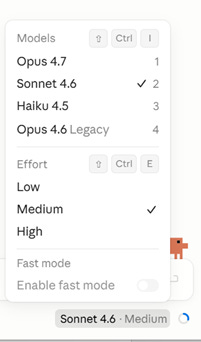
Each model is designed for separate use cases. Haiku is best suited for quick questions and answers. If I need a model to handle basic data retrieval or to answer generic questions, I’d rely on Haiku. It’s the fastest and cheapest model. But I don’t recommend using it to build an app or a website as it lacks the strategic reasoning element of the other Claude models.
Next, Sonnet sits in the second tier. This is my go-to model for vibe coding. For any moderately complex question, I’ll send it over to Sonnet. For most of the agents I create, I’ll have them rely on Sonnet. It’s effective and cost-efficient.
Finally, there’s Opus. View Opus as your sharpest coworker. It’s the one you go to for advice or guidance when the problem you’re trying to solve is too thorny. Opus can handle deep research, strategic reasoning, and complex, multi-step/multi-agent processes better than any other Claude model.
However, be wary of how often you rely on Opus. Regardless of whether you’re on a Pro plan or a Max 20x plan, Opus burns through your token limits noticeably quicker than Haiku or Sonnet.
When I use Claude Code, I always start off in Plan Mode before I request Claude to take an action on my behalf. The more context and guidance you can provide to AI, the closer the output will be to what you originally envisioned. I leverage Opus to write the build plan for the product or system that I’m aiming to build and rely on its strong strategic reasoning to question my logic and push my thinking. I regularly ask Opus to find holes in my own logic, as well as its own. When I’m satisfied with the plan, I push the plan to execute using Sonnet. This separates high-level reasoning from execution, which is more cost-efficient.
Also, you may have noticed the phrase “effort” next to the model’s name. Sonnet and Opus both have a dial that allows you to control the performance of the model. Go low, and you’ll get a fast version, but you may create some errors along the way. Go high, and you’ll burn through tokens quickly, but you’ll be able to handle complex tasks like full reviews of your codebase, synthesizing dozens of files at once, and find even slight irregularities between app versions. If you’re wondering, Sonnet at either Medium or High effort is my default setting.
Higher effort increases the amount of compute the model uses to reason through your prompt. More compute means more tokens used up.
Note: there’s also the rumored Mythos (which we chatted about here), but since it’s not publicly available yet, no need to dive into use cases.
Token Usage and Context Windows
“You keep mentioning, ‘burning through tokens’. What does that even mean?”
Good call out. This is worthy of an explanation.
Tokens in the AI world are like tokens in an arcade. You need tokens to play the game, and some games require more tokens than others.
Each word you type can map to one or more tokens. Additionally, uploading file attachments, requesting pictures, and asking Claude to search the web all require tokens of varying amounts to complete. Essentially, everything you do within Claude chews up tokens, but what you do and which model you use impacts how many tokens you’re using.

Another critical thing to know here is that lengthy conversations eat up tokens. When you press Enter on your next prompt, the full conversation is packaged up and sent to Claude for context interpretation. Thus, the more back-and-forth you have with Claude, the more information that gets continually sent back to the model, and the more tokens are burned in the process.
If you’ve picked up that Claude is starting to forget pieces of information you told it earlier on in your conversation, it’s because you hit your context window. This represents the maximum number of tokens that AI can “hold” within a single chat session. Certain pieces of data or information will start to fall off, and you’ll start wondering why your output looks funky. That’s because new tokens are pushing older ones out of the window on a “first in, first out” basis.
Tip: If you plan to change the topic, start a new session or tab. This resets the context window. Also, you can have Claude remember a summary of your conversation by invoking the “/memory” command within the terminal and then reference this memory in a new session. Leveraging “/compact” helps maintain context in a summarized, token-efficient form. Then, “/clear” erases all prior context, creating a new slate within the same session.
Model Context Protocol (MCP)
MCP is technology developed by Anthropic that can be thought of as a standardized way for AI to interact with external tools and data sources. It allows users to connect various data sources to their AI setup. In an oversimplified one-liner, MCP is like an API for AI. I’ll hold off on the technical elements of MCPs (reach out if you’re interested, I’d be happy to chat) and instead focus on how you can set them up.
Say you are an e-commerce manager and you’re looking to build a dashboard that depicts real-time data from Google Analytics 4 (GA4). Claude can help you do this, and you can leverage MCP to make it happen.
What does that look like? You write the prompt, “rank site referral traffic sources in GA4 by sessions from last month and analyze bounce rate by source”. Claude can call the GA4 MCP (if configured) and return the data to your desktop app or terminal without having to log into a separate website.
Claude has a growing set of built-in connectors that leverage MCP to pull in data (and push actions too). Check out the “Connectors” section within the desktop app’s Settings area. Or you can ask Claude to help you set up a custom MCP, which will require more technical prowess. Still doable for even novice vibe coders though.
A word of caution: When making an MCP call within a chat, Claude is pulling a lot of extra data from the external data source. This will have a noticeable impact on your tokens and chew up your context window. MCPs are useful but difficult to use at scale given the cost impact and context window consequence. This is especially true if you are asking Claude to pull from many MCP connections within the same request. I recommend separating your tasks into various sub-agents that pull data individually from each MCP and then have an orchestrator agent synthesize the information between each sub-agent. This should eat up fewer tokens than trying to put together an analysis by stuffing each MCP into one session since each MCP call injects a large amount of data into the context window.